
Choose the right type of notification
Use job-state, ETA, and geofence rules for different moments, then decide who should receive each message by push, email, or SMS.
Compare the configurable notification types
| Type | When it fires | Good for | Configure under |
|---|---|---|---|
| Job state | A job enters a selected workflow state | Assignment, cancellation, progress, and completion updates | Settings → Job Notifications |
| ETA | A driver comes within a time or distance threshold of a remaining stop | “Arriving in 15 minutes” and “driver is nearby” messages | Settings → ETA Notifications |
| Geofence | A tracked user enters, exits, or dwells inside a zone or geofence | Arrival at a depot, departure from a service area, or prolonged presence | Settings → Zones → Notifications |
You can create multiple rules for the same event. For example, send a push notification to the driver and an SMS to the customer when a job is assigned.
Before you start
- Open Settings → Site Settings and enable every delivery channel you intend to use.
- Confirm each recipient has the required destination: an email address, phone number, or registered push device.
- Confirm the channel has an available provider. Your environment may use RouteIQ Dispatch Software's platform provider or a site integration such as Mailgun, Twilio, Telnyx, or Firebase Cloud Messaging.
- Check user notification preferences. A user can opt out of an otherwise enabled channel.
The channel must be on, the person must allow that type of message, their contact information or device must be available, and the delivery service must be connected.
1. Job-state notifications
Use these when the message should follow the job workflow rather than the driver's physical location. Each rule combines one workflow state, one recipient type, and one delivery method.
- Open Settings → Job Notifications.
- Select Add Notification.
- Choose the workflow state that should trigger the message.
- Choose Customer, Driver, or Admin.
- Choose Push, Email, or SMS.
- Review the default wording, customize it if needed, leave the rule enabled, and save.
Supported combinations have useful defaults. Site-specific rules override them; removing an override returns that combination to its default behavior. Review email and SMS rules explicitly rather than assuming they are enabled by default.
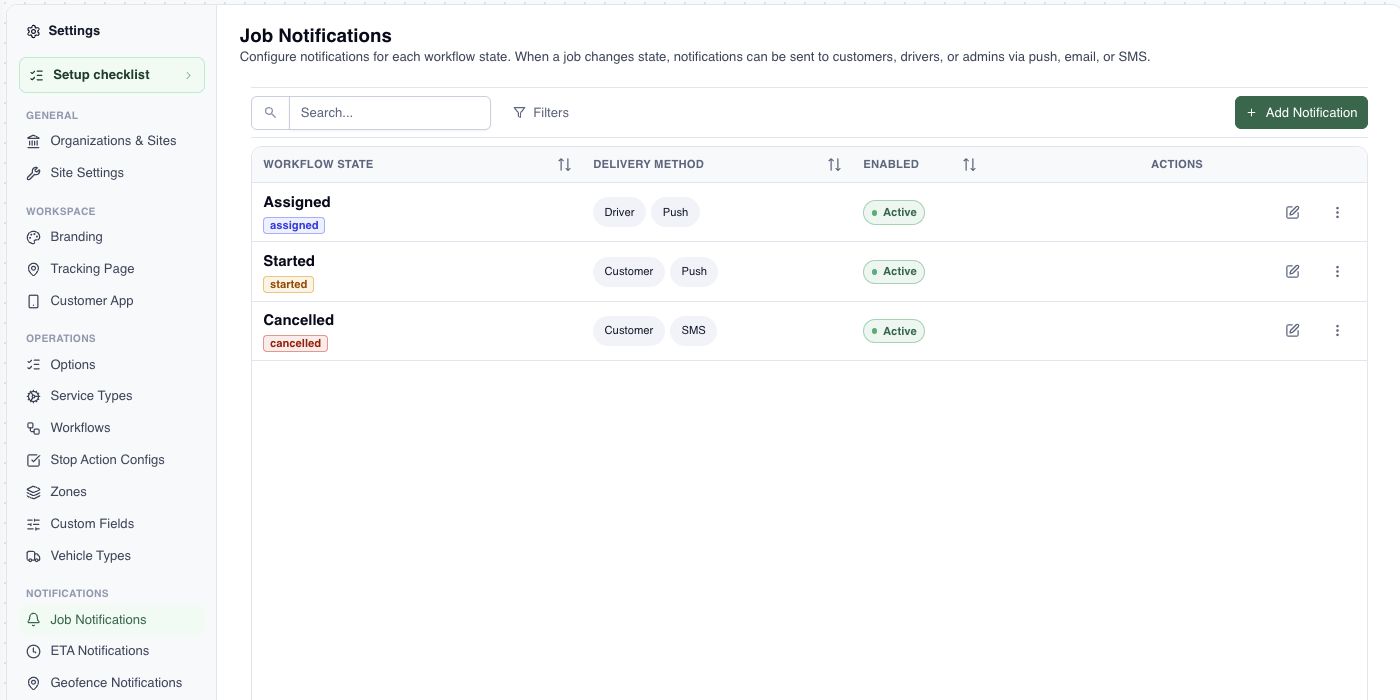
2. ETA notifications
Use these when timing or distance matters more than job status. Each rule is checked for every remaining stop whenever the route's ETA changes.
- Open Settings → ETA Notifications and select Add Notification.
- Choose Time Before Arrival or Distance Away.
- Enter the threshold in minutes or in your site's configured distance unit.
- Choose the customer, driver, or admin and the delivery channel.
- Review the message template, enable the rule, and save.
A rule normally sends once for each job and stop. If you change the stops or their order, the updated plan may allow the notification to send again.
3. Geofence notifications
Use these when a tracked person enters, leaves, or stays inside an area.
- Open Settings → Zones, then the Notifications tab.
- Target one zone or choose All zones and geofences.
- Choose Enter, Exit, or Dwell. Dwell fires once after a tracked user remains inside for about five minutes.
- Choose Admin, Dispatcher, or Tracked User.
- Choose the delivery channel, set the minimum time between alerts if needed, review the template, and save.
Geofence rules require current location updates and a valid boundary. They respond to a boundary transition, not every GPS ping.
Channels and recipients
| Channel | Recipient needs | Provider | Best use |
|---|---|---|---|
| Push | A registered device and permission to receive notifications | Firebase Cloud Messaging or the available platform push provider | Fast operational alerts for signed-in users |
| A valid email address | Mailgun or the available platform email provider | Detailed updates that should be easy to retain | |
| SMS | A valid phone number with country code | Twilio, Telnyx, or the available platform SMS provider | Short, urgent updates when the app may not be open |
Customer means the customer on the job, Driver means the job's lead driver, and Admin means the site's administrators. Location rules can instead notify all dispatchers or the tracked person who crossed the boundary.
Message templates
Email and push messages require a title and body. SMS uses only the body. Use the variables shown in the editor instead of typing live names or numbers into every rule.
- Job state:
{{job_id}},{{job_number}},{{state_name}},{{customer_name}},{{driver_name}} - ETA:
{{driver_name}},{{eta_minutes}},{{job_number}} - Geofence:
{{user_name}},{{geofence_name}},{{event_type}}
Keep SMS concise, give email and push a useful title, and never place secrets or internal-only notes in a customer template.
Automatic and in-app notifications
The notification bell stores alerts for the signed-in user, where they can be opened and marked as read. Some product alerts, such as chat, call, password-reset, invitation, and account messages, are generated by their own features and are not controlled by the three rule screens above.
Verify and troubleshoot
- Create a test rule aimed at a recipient and destination you control.
- Trigger the real event: move a test job into the selected state, approach a stop, or cross a test zone boundary.
- Check the RouteIQ Dispatch Software notification bell and the relevant provider's delivery logs.
- Confirm the names, job number, timing, and links look right before enabling the rule for everyone.
The rule is enabled but nothing arrives
Check the site channel switch, user preference, recipient contact information or device token, and provider integration.
An ETA rule does not fire
Confirm the route has a driver with recent location data, the stop has a calculated ETA or distance, and the same rule has not already fired for that stop.
A geofence rule does not fire
Confirm the tracked user is sending live locations and actually crosses the boundary. For dwell, remain inside for at least five minutes.
Recipients get too many messages
Look for overlapping rules that target the same event and recipient. Keep only the combinations that communicate something distinct.