
Set pricing and driver earning rules
Create rules for customer prices and driver pay. Each completed job keeps a clear record of how the amounts were calculated.
The money flow
- Job detailsService, options, stops, zones, vehicle, distance, time, and wait.
- Customer priceA pricing rule creates the quote and final charge.
- Paid completionThe job is completed and payment succeeds.
- Driver earningThe driver's rule saves a final record of the pay calculation.
| Rule | Produces | Configured at |
|---|---|---|
| Pricing rule | Estimated and final customer price | Settings → Pricing Rules |
| Earning rule | Driver earning, tip, total, and charge breakdown | Settings → Earning Rules, then assigned on the driver |
1. Build the customer pricing rule
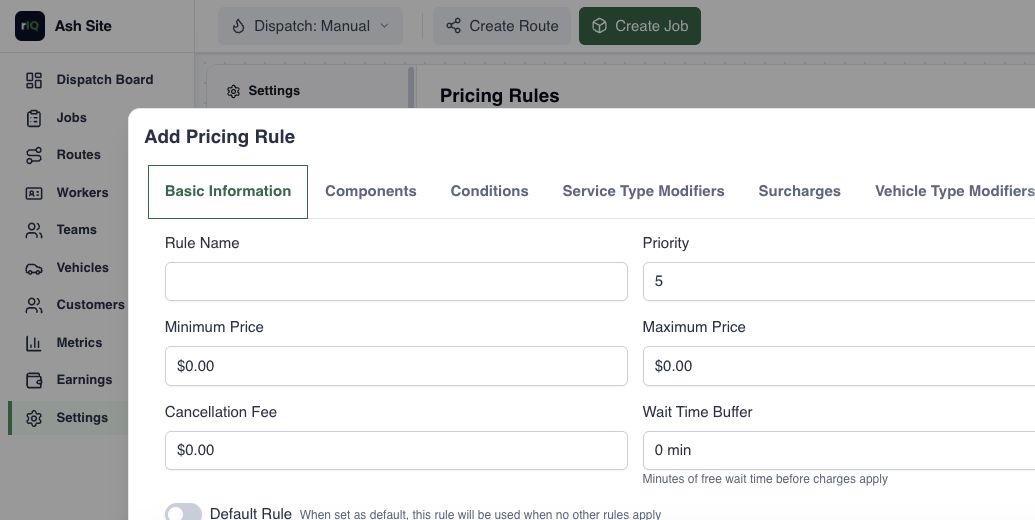
Open Settings → Pricing Rules and select Add Pricing Rule. Give it a clear name, priority, optional minimum and maximum, cancellation fee, and free-wait buffer.
Basic charges
These charges are added whenever the rule is used. You can charge a base amount, per distance unit, per minute, per stop, service fee, and wait time.
Charges for specific jobs
- Conditions add extra charges based on the zone, vehicle type, day of week, time, or distance.
- Service type and vehicle changes use different amounts for a matching service or vehicle.
- Option charges add a flat amount or percentage when the job has an option. Each selected option charge is added.
- Surcharges add named flat fees on top of the basic charges.
2. Understand which pricing rule wins
The active zones at the start and end of each part of the trip determine which pricing rule is used:
- The highest-priority rule matching both zones.
- Otherwise, the highest-priority rule matching either zone.
- Otherwise, the site's default rule.
A zone-specific rule can change only the values that differ. Any missing charges and limits come from the default rule, so a zone rule does not accidentally remove the base fare.
The default covers work that does not match a zone rule. When more than one zone rule matches, priority decides which one is used.
3. Estimate first, calculate the final price later
The estimate and final price use the same rules, but the final price can use more accurate details from the completed job.
- Estimate: uses distance and travel time from your map provider. The estimate and its breakdown are saved with the job, so later rule changes do not alter the price the customer agreed to.
- Final price: can use recorded distance, arrival times, and extra wait time after the work is complete. Map estimates are used when those details are unavailable.
New pricing rules affect new calculations. Saved estimates do not change.
4. Build and assign driver earning rules
- Open Settings → Earning Rules and create a named formula.
- Add a base amount, per-distance-unit, per-minute, per-stop, or percentage-of-job amount as needed.
- Set an optional minimum. Set maximum to 0 when the rule should have no cap.
- Make one rule the site default.
- Open a driver in Workers to assign a specific earning rule when that driver should not use the default.
All amounts are added together, then the minimum or maximum is applied. Tips are added afterward at 100%, so a maximum never withholds the driver's tip.
The earning record is created only after the job is completed and payment succeeds. It saves the rule and numbers used to calculate pay, tip, and total. Later rule changes do not alter past earnings.
Example: price independently from driver pay
| Customer pricing | Driver earnings | |
|---|---|---|
| Base | $12.00 | $7.00 |
| Distance | $2.00 per distance unit | $0.80 per distance unit |
| Stops | $3.00 per stop | $1.50 per stop |
| Fragile option | +15% option modifier | No change unless the earning formula includes it indirectly through percentage of job |
| Tip | Collected from the customer | Added in full after the earnings cap |
The formulas intentionally do not need to mirror each other. That makes margin visible and lets a site pay drivers consistently while changing customer promotions or surcharges.
Test rules before launch
- Create a non-production job with known stops, service type, options, vehicle, and zones.
- Record the expected component math by hand.
- Compare the RouteIQ Dispatch Software estimate and breakdown with the expectation.
- Complete and mark payment successful only in a safe test environment, then verify the actual price and Earnings record.
- Test boundary cases: a zone edge, minimum, maximum, free-wait threshold, and a driver-specific rule.
Troubleshooting
The wrong price rule applied
Check active zones at both ends of the leg, each matching rule's priority, and the active default rule.
The actual price differs from the estimate
Compare actual distance, duration, wait time, and the selected options with the estimate breakdown. The calculation is shared; the final inputs may differ.
No driver earning was created
Confirm the job has a driver, is in a completed phase, payment succeeded, and either the driver has an active assigned rule or the site has an active default earning rule.