
Set up the Driver App for RouteIQ Dispatch Software
Create the account, install the app, enable the right phone permissions, and move assigned routes and stops from ready to complete.
1. Download RouteIQ Driver
Install the official RouteIQ Driver app from the driver’s phone:
Keep automatic updates enabled. Driver App releases can include workflow, location, notification, and offline-sync improvements that administrators do not configure in the dashboard.
2. Create or invite the driver
- In the dashboard, open Workers and select Add Worker.
- Enter the driver’s name, email, phone number, and other required details.
- Set Role to Driver.
- Either set an initial password or enable Send invite so the driver can create one from email.
- Add any driver-license information, schedule, earnings rule, team, skills, or other fields your operation uses.
- Save the worker and confirm the account is active.
If the person already belongs to another site in your organization, use Import user from organization instead of creating a duplicate account.
3. Sign in and allow phone permissions
- Open RouteIQ Driver and sign in with the invited email and password.
- If the account belongs to multiple companies, choose the correct company profile.
- Allow Location, including precise and background access.
- Allow Notifications for new assignments, route changes, chat, and calls.
- Allow Camera for proof photos and scans, and microphone access when using voice notes or calls.
While the driver is On Duty, dispatchers and customers can see their current position even when they are using another app or the phone is locked. Going Off Duty stops location sharing.
4. Go On Duty
- Open Work and use the duty control beside the driver’s name.
- Confirm the app says On Duty and shows that location is being tracked.
- If location is unavailable, open the phone’s app permissions and enable precise background location.
Duty status helps dispatchers distinguish a driver who is available and trackable from one who is signed in but not currently working.
5. Receive assigned or offered work
The Work screen organizes work into Active, Available, and History:
- Assigned routes and jobs appear under Active or Upcoming.
- Opt-in offers can be accepted or declined before they expire.
- Pool work can be claimed while it remains available.
- Completed work moves to History with its recorded results and earnings.
Open a route to review its stops, jobs, time windows, notes, progress, and next stop before starting.
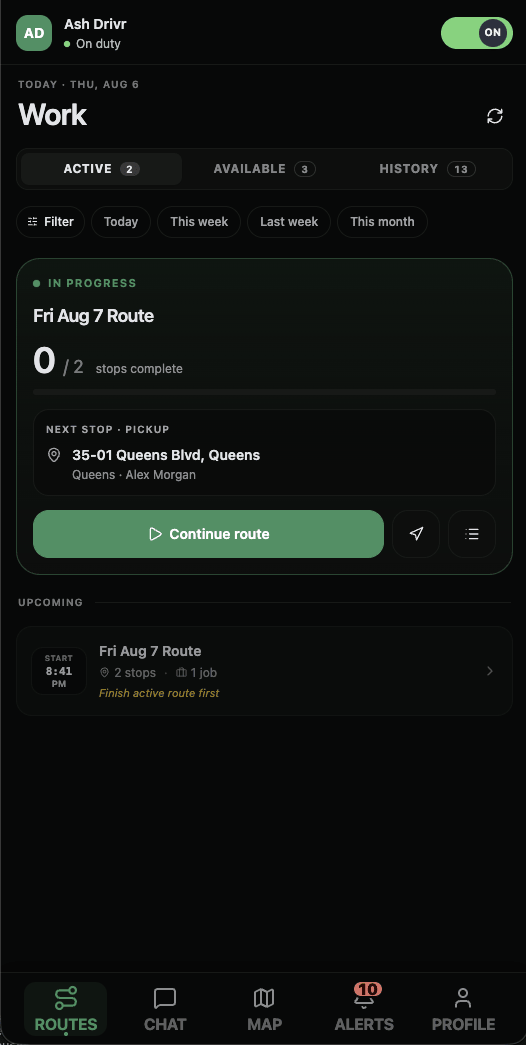
6. Work through a route
- Select Start Route. Only one route can be in progress at a time.
- Open the map and review the highlighted current stop, contact, time window, and notes.
- Select Navigate when you need turn-by-turn directions.
- Move the stop through arrival and service in the order shown by the app.
- Complete every required stop action, such as a photo, signature, barcode or QR scan, form, attachment, or payment collection.
- Complete the stop and continue until every job and stop on the route is finished.
- Select Complete Route.
If dispatch changes the route, the update appears in the app. Use Alerts and Chat to review new work or coordinate an exception without sharing personal phone numbers.
7. When the signal drops
When the phone has no connection, the app saves supported changes such as duty status, completed stops, photos, and signatures. Continue the job in the app, then keep it open long enough to send those changes when the connection returns.
Offline work is stored on that device until it uploads. Do not uninstall the app, clear its storage, or switch phones while unsynced changes remain.
What branding applies to drivers?
The Driver App keeps the RouteIQ Dispatch Software name and icon. Your company name and branding appear in the customer-facing parts of the product, while drivers see the teams, work, vehicles, services, instructions, and statuses set up for your company.
The logo, colors, theme, and customer-app store URLs under Settings → Branding apply to customer-facing surfaces: the Customer App, invite banner, and public tracking page.
Troubleshooting
The driver can sign in but sees no work
Confirm the driver selected the correct company, the account is active, and the job or route was assigned, offered, or posted to a pool they can access.
Dispatch cannot see the driver’s location
Confirm the driver is On Duty and that the phone grants RouteIQ Driver precise background location. Battery-saving settings can also suspend updates.
The route will not start
Finish the driver’s existing in-progress route first. Then check assignment, confirmation, stop addresses, and any schedule or vehicle requirements.
A stop cannot be completed
Open Stop actions and finish every required item. Contact dispatch before disabling a required action or cancelling the job.
New work or chat does not arrive
Check notification permission, connectivity, duty status, and the in-app Alerts screen. Then update the app from the store and try again.
See the full delivery workflow
The driver app is one part of the operation. See how delivery management software connects office planning, driver progress, customer tracking, and saved proof. Our buying checklist includes a practical driver handoff test.