
Choose when to dispatch automatically
Let routine work reach an eligible driver while your dispatchers focus on jobs that need judgment.
Decide what should be automatic
Automatic dispatch is useful when new jobs follow a repeatable assignment rule: send an urgent pickup to the eligible driver with the best ETA, spread similar visits across a team, or let available drivers accept offers.
Keep a dispatcher involved when a customer promise needs negotiation, several jobs must be planned together, or an exception needs a human decision. Automatic assignment does not by itself prove that every stop's time window can be met.
| Method | Useful when | What to expect |
|---|---|---|
| Best ETA | Reaching the pickup quickly matters most. | Selects among eligible drivers using estimated arrival time. |
| Driver load | Similar jobs should be shared across available drivers. | Favors drivers with fewer active jobs; job count is not the same as hours of work. |
| Round robin | You want a rotating allocation of similar work. | Cycles among eligible drivers. Different job lengths can still produce unequal workloads. |
| Driver opt-in | Drivers should choose whether to take offered work. | Sends offers to eligible drivers and uses your fallback if nobody accepts. |
Start with one method that matches a real operating goal. Review the result before making several timing and retry changes at once.
Prepare the driver pool
A site administrator configures this in Settings → Site Settings. Before enabling it, confirm that the site's drivers, duty status, schedules, vehicles, and job requirements are correct. For ETA-based selection, check that driver locations and the map provider produce sensible estimates.
Choose the Scope before tuning the method:
- Site-wide: consider eligible drivers across this site.
- Team: select the team that should receive the work.
- Zone: use teams covering the job's zone. Zone enforcement determines whether unavailable local coverage can fall back to the wider site.
Read Keep work in the right territory before using Zone scope. No assignment strategy can supply a missing vehicle, missing capability, or unavailable driver.
Configure the assignment rule
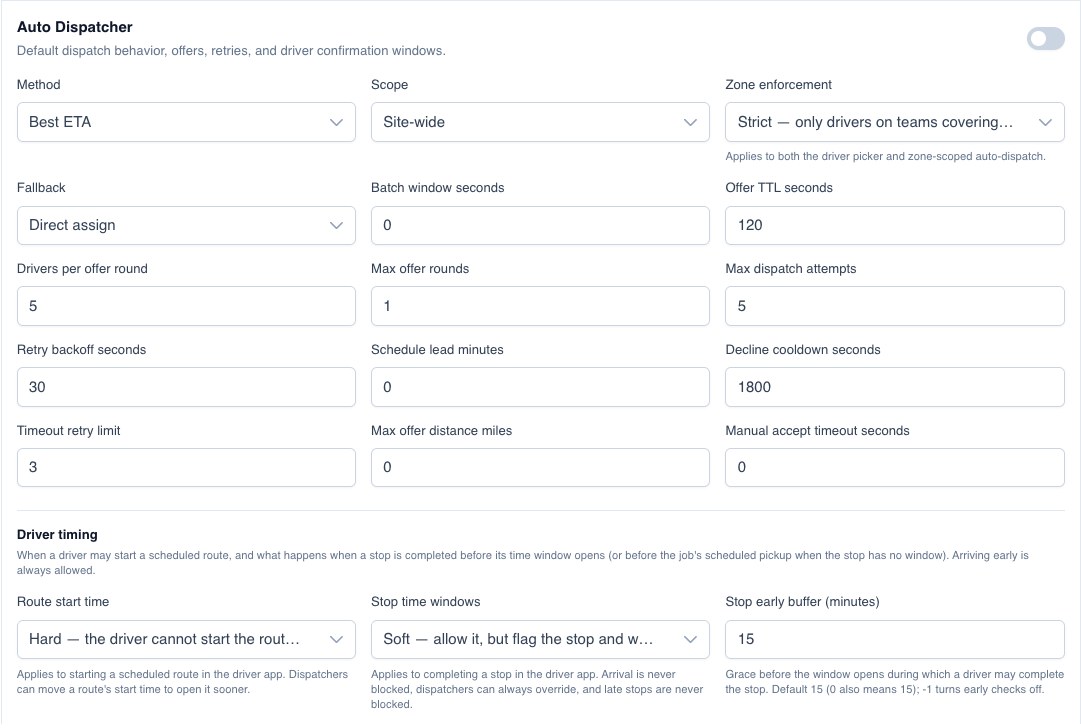
- Open Settings → Site Settings → Auto Dispatcher.
- Choose Method and Scope. Select a Team when using Team scope.
- Review Zone enforcement if your work depends on territory coverage.
- Use Max offer distance miles only when you have a meaningful maximum driving distance to the job. A value of 0 removes that distance cap.
- Choose the timing and exception policy below.
- Enable Auto Dispatcher and select Save settings when the driver pool and test plan are ready.
The dispatching guide covers manual assignments and the Jobs workspace. You can still use a dispatcher to resolve exceptions while automatic dispatch is enabled.
Decide when work should be offered
Schedule lead minutes controls how far before a scheduled job time automatic dispatch should begin. For example, 30 makes a 2:00 p.m. job eligible for scheduled processing at 1:30 p.m. A value of 0 means dispatch when ready; it does not mean wait until the scheduled start.
Batch window seconds adds a short delay for newly ready work to collect before processing. It is a queue delay, not a promise to combine those jobs into an optimized route. A future scheduled lead time takes precedence over that delay.
Retry backoff seconds spaces attempts when an eligible driver cannot be found. Max dispatch attempts limits repeated attempts before the job is left for a dispatcher.
A driver may receive work before being allowed to start its route. Configure that policy in Driver timing.
Choose what happens to unanswered offers
For Driver opt-in, set Offer TTL seconds to the time drivers have to respond, Drivers per offer round to the audience size, and Max offer rounds to the number of rounds to try. Give drivers enough time to notice and assess the work.
| Fallback | Use it when |
|---|---|
| Direct assign | Your operation permits assignment without an accepted offer after the offer process runs out. |
| Re-offer | Another attempt after the retry delay is useful, within the dispatch-attempt limit. |
| Escalate | Staff should take ownership when the offer process is exhausted. |
| None | The job should return to ready work for a dispatcher instead of continuing automatically. |
Decline cooldown seconds controls how long a driver's explicit decline keeps that job from being offered to them again. Timeout retry limit controls repeated offers to a driver who lets them expire.
Manual accept timeout seconds is separate: it applies to manual or team assignments made with driver confirmation required. At 0, no automatic return deadline is applied to those assignments.
Test the normal case and the exception
- Use a test site and a newly created job with clear addresses, a known service, and a suitable test driver. Onboarding sample work is excluded from automatic dispatch.
- Confirm the normal result: a direct method assigns the expected eligible driver, or Driver opt-in produces an offer the test driver can accept.
- For scheduled work, check the planned lead time separately from route-start permission.
- Make the test driver unavailable and confirm the work remains visible for follow-up rather than assuming it has been handled.
- For offers, let one expire and verify the selected fallback. Agree who monitors the unassigned work queue.
When rolling out, review assigned and unassigned jobs together. A useful measure is whether exceptions are obvious and owned, as well as whether routine assignments are fast.
Troubleshooting
A ready job stays unassigned
Check that Auto Dispatcher is enabled, the job is eligible for automatic dispatch, its lead time has arrived, and the scope includes an on-duty driver with the required vehicle and capabilities. For Zone scope, check territory coverage. Repeated unsuccessful attempts can leave the job excluded from automatic dispatch and awaiting manual handling.
A nearby driver is not chosen
Distance is only one part of eligibility. Check schedules, conflicts, vehicle requirements, team or zone scope, declines, and expired offers. Best ETA also depends on usable location and routing estimates.
Work is assigned too early
Review Schedule lead minutes. A value of 0 dispatches when ready. If the problem is the driver departing early, review Route start time instead.