
Dispatch jobs and routes
Choose how work reaches drivers, assign one job or an entire run, and know what RouteIQ Dispatch Software changes when you press Dispatch.
What dispatch does
Dispatch connects work to the people who will perform it. The job remains the customer order, its stops remain the individual tasks, and the assigned driver's route becomes the ordered list of stops.
- Ready workAn unassigned, pre-start job is available to dispatch.
- Driver selectionYou choose a driver or team, let drivers claim the work, or let RouteIQ Dispatch Software select automatically.
- AssignmentWhen you assign a job, its stops are added to the driver's upcoming route. If the driver does not have one yet, a route is created automatically.
- ExecutionThe driver accepts when required, starts the route, and works through its stops.
You do not need to create a separate route first. A direct job assignment adds the job's stops to the appropriate pending route for that driver and scheduled date.
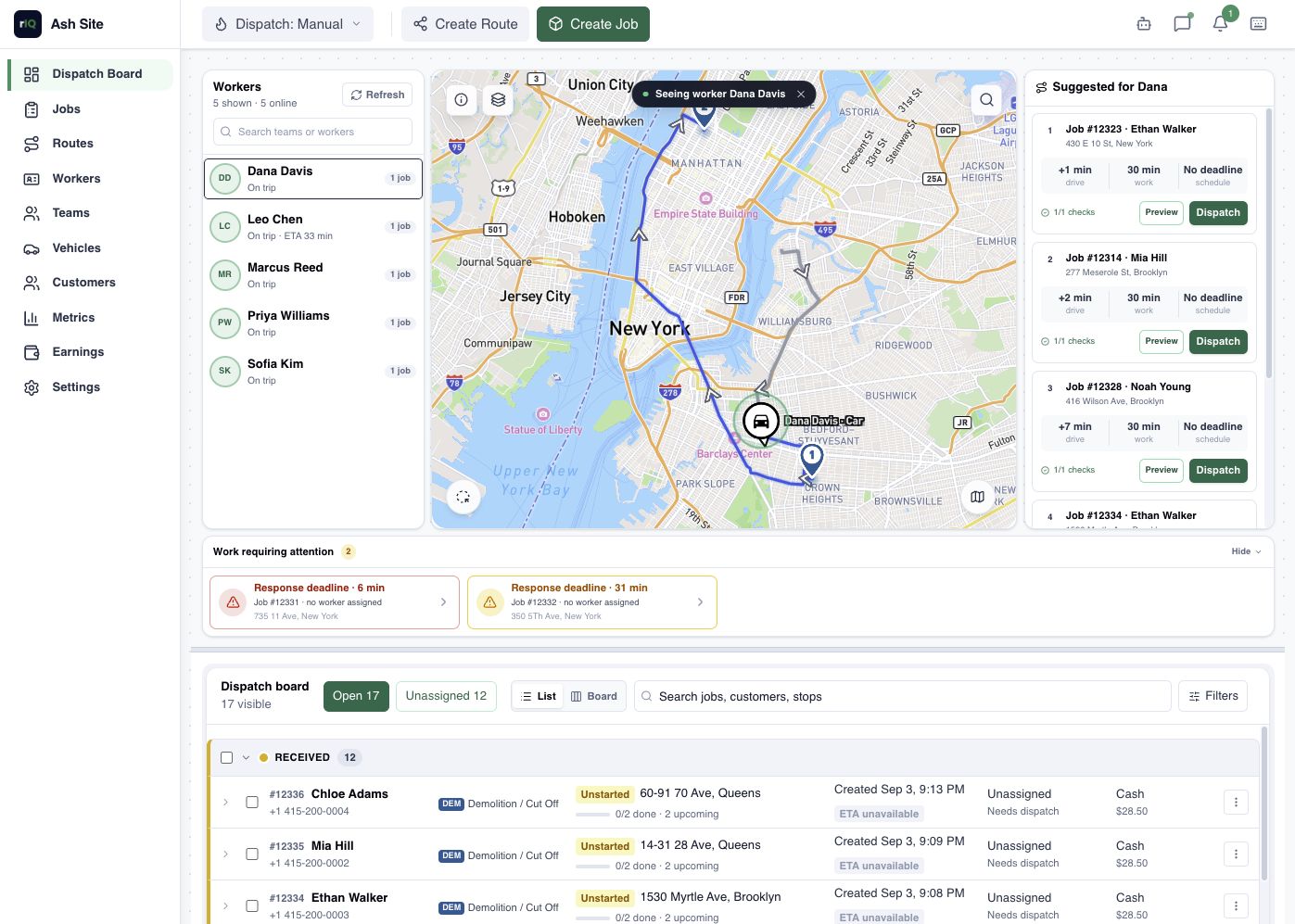
Choose the right dispatch flow
| Flow | Best for | Who chooses the driver? |
|---|---|---|
| Assign job to driver | One job, urgent work, or a known driver; no route setup required | You |
| Dispatch to team | Keeping work inside a team, or sending a crew together | The platform selects one member, or the whole team attends |
| Offer opt-in | A single job where drivers should express interest | The platform selects the best eligible driver who accepts |
| Post to pool | Flexible work that any eligible driver, or one team's drivers, may claim | The first eligible driver to claim it |
| Dispatch a route | A planned run whose stop order you want to preserve | You select the driver for the route |
| Automatic dispatch | Continuously assigning new ready jobs at scale | The platform uses your configured strategy |
You can mix these flows. For example, automatic dispatch can handle normal ready jobs while a dispatcher manually assigns an exception or builds a planned route.
1. Prepare the work
Before opening the dispatch dialog, confirm:
- The job is unassigned and has not started, completed, or been cancelled.
- Its stops have valid addresses, contacts, time windows, and required service details.
- Any service, vehicle, zone, or driver requirements are correct.
- The planned start time is correct if the work is scheduled.
For a batch, every selected job must be ready for dispatch. If a selected job is already assigned or in progress, you will be told which job needs attention.
2. Dispatch one or more jobs
- Open Dispatch Board or Jobs.
- Open a job's actions and select Dispatch, or select several jobs and use Dispatch from the batch actions.
- Choose Assign driver, Dispatch to team, Offer opt-in, or Post to pool.
- Complete the fields for that flow, review the route preview when shown, and confirm.
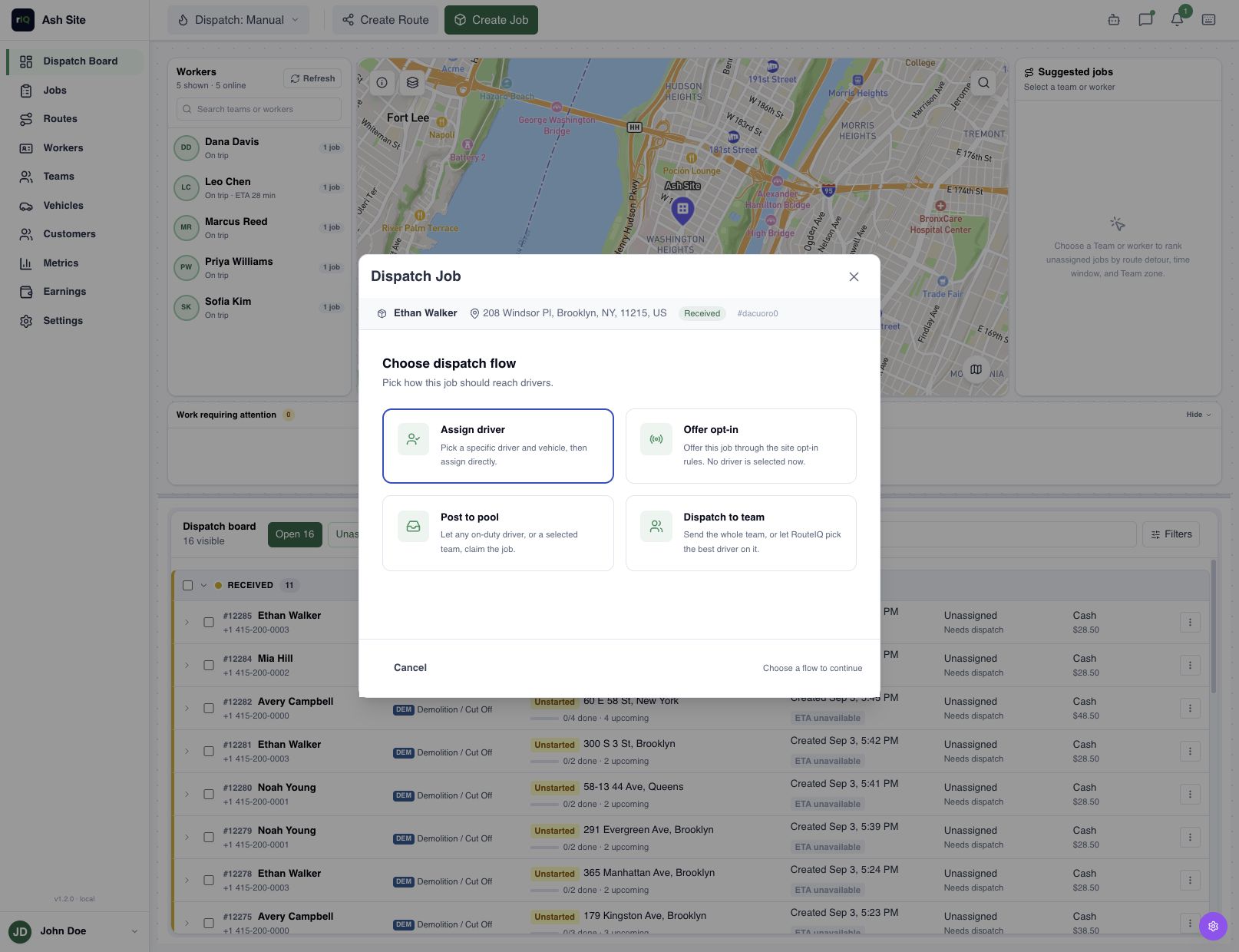
Assign a specific driver
This is the simplest path for assigning work. Start from the job; the platform handles its route structure automatically.
- Select the driver. Review duty status and existing active routes before choosing.
- If the job belongs to a zone, RouteIQ Dispatch Software initially shows drivers on teams that cover it. Use Include drivers outside this zone only when crossing that boundary is intentional.
- Select the driver's personal vehicle or an eligible fleet vehicle.
- Set an optional Start At time and choose whether the driver must confirm.
- Select Assign Driver.
Dispatch to a team
Select the team, then choose how it should work:
- One member: The platform selects a driver by fastest ETA, lightest workload, or round robin.
- Whole team: every member is added to the job, with the team leader acting as lead.
- Batch distribution: selected jobs are divided among individual team members. Leave route optimization on to group nearby jobs and create a practical route for each driver.
Offer opt-in or post to the pool
- Offer opt-in is for one job at a time. Eligible drivers receive an offer; accepting expresses interest, and the platform selects the best eligible accepter when the offer window closes.
- Post to pool supports one or several jobs. Leave the team blank for a site-wide pool, or select a team to restrict who can see and claim the work.
3. Dispatch a planned route
Creating a route first is optional. Use a route-first workflow only when you need to control the full run before assigning it, for example, a morning delivery wave, a service territory, or a route with strict time windows.
- Select the jobs and choose Create Route, or open Routes and create one.
- Add or remove stops, set the start time and starting or ending locations, and arrange the stop order.
- Preview optimization and review time-window or feasibility warnings.
- Save the route.
- Select a driver and vehicle, then choose Dispatch to driver.
Assigning the route also dispatches each active job represented by its stops. If a job is already assigned to a different driver, the route cannot be dispatched, so the same work is not placed on two drivers' routes.
If an individual job cannot be dispatched, the platform identifies the affected job and reason. Resolve those exceptions before treating the whole run as ready.
4. Decide whether the driver must confirm
Turn on Require driver confirmation when the driver needs to acknowledge a direct or team assignment before proceeding. The driver can accept or decline:
- Accepted: the confirmation requirement is cleared and the assigned work remains with that driver.
- Declined: The platform removes the assignment and returns the job to Ready for another dispatch.
- No response: when your site has a confirmation timeout, the platform returns the job to dispatch after that window. Without a timeout, it stays assigned until someone acts.
This is different from Offer opt-in. Confirmation asks one assigned driver to acknowledge work; opt-in asks a group of eligible drivers who is willing before RouteIQ Dispatch Software makes the final assignment.
5. Turn on automatic dispatch
Use the dispatch control in the top bar to switch from Manual to Auto, then select a strategy:
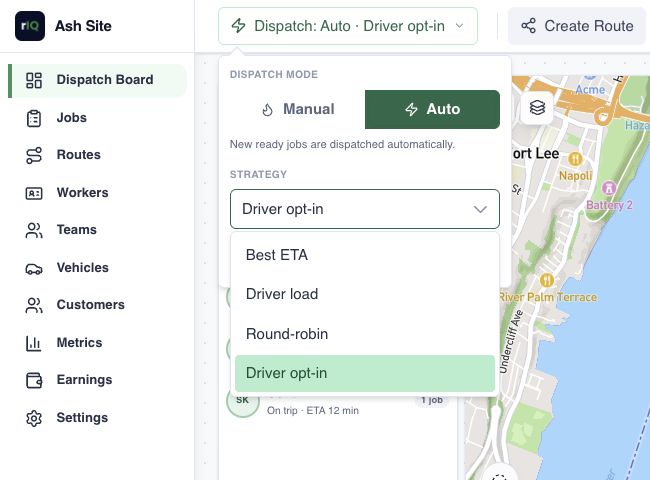
| Strategy | How RouteIQ Dispatch Software selects | Use it when |
|---|---|---|
| Best ETA | Fastest estimated arrival among eligible drivers | Response time matters most |
| Driver load | Driver with the lightest current workload | You want assignments spread more evenly |
| Round-robin | Rotates through eligible drivers | You want predictable assignment rotation |
| Driver opt-in | Offers the job, then selects the best eligible driver who accepts | Drivers should choose whether to participate |
Automatic dispatch watches for jobs in Ready. Scheduled work can wait until the chosen lead time before its start. You can run automatic dispatch for the whole site, one team, or the team that covers the job's zone.
Select Run dispatch now to process the current ready work immediately with the selected strategy. If no eligible driver is found, the job stays ready and is tried again according to your settings. After the last attempt, it is flagged for a dispatcher.
Turning on Auto does not prevent a dispatcher from assigning a job directly, sending it to a team, or building and dispatching a route.
Reassign, unassign, or cancel
- Change the driver on a job: unassign the current driver first. This removes the job's stops from that route and returns the job to Ready; then dispatch it again.
- Unassign a route: The platform reopens the route, clears its driver and vehicle, and returns its unfinished jobs to Ready. Completed work is preserved.
- Cancel the work: cancel the job only when the customer work itself should stop. Cancellation removes its unfinished stops from active routes.
Unassigning and cancelling are not interchangeable: unassigning keeps the work available for another driver, while cancelling ends the work.
Troubleshooting
Dispatch is unavailable
The job is already assigned, has started, is completed or cancelled, or its latest state is not available. Refresh the list and confirm you selected only unassigned, pre-start jobs.
No drivers are listed
Check driver duty status, schedules, vehicles, team membership, required capabilities, and zone coverage. For a zoned job, deliberately include drivers outside the zone only if your operating rules allow it.
The selected vehicle is unavailable
Choose a fleet vehicle or one assigned to the selected driver. A normal individual assignment needs an eligible vehicle.
Automatic dispatch did not assign a ready job
Confirm Auto is on, the job has not been excluded from automatic dispatch, its scheduled lead time has arrived, and at least one driver meets the scope, distance, zone, vehicle, schedule, and capability requirements.
The driver cannot start another route
A driver may have multiple pending routes but can run only one started route at a time. Complete or otherwise resolve the current route before starting the next one.
Compare dispatch workflows
See how these assignment options fit courier dispatch software and delivery management software. If you are evaluating a system, use the delivery software buying checklist to test a planned route, an urgent pickup, and a delivery that needs attention.