
Add the worker details your team needs
Keep details such as uniform size or an internal staff reference beside the worker record, so your team can find and maintain them in one place.
Choose a field people can answer consistently
First check whether the worker form already has the information you need. Use a custom field for an additional detail, rather than keeping a second version of a built-in field such as a phone number.
This walkthrough covers Worker fields. Worker records and worker imports currently support custom-field values; the other entity types in the definition picker do not imply equivalent data-entry support.
| Data type | Use it for | Example |
|---|---|---|
| Text | A reference or short free-form answer | Internal staff reference, such as OPS-014 |
| Number | A numeric quantity | Uniform sets issued |
| Select | One answer from a controlled list | Uniform size: S, M, L, XL |
| Date | A calendar date | Equipment issue date |
| Checkbox | A yes-or-no detail | Spare uniform issued |
Use Text for identifiers with leading zeros. Use Select when spelling variations would make the answers harder to compare. A stored date or checkbox does not create a reminder or a dispatch rule.
Create a worker field
Use an administrator account in the site where the workers belong.
- Open Settings → Custom Fields. Choose Worker in the entity filter, then select Add Custom Field. The button is unavailable while the filter is All.
- Confirm Entity Type is Worker. Enter a Key, such as
uniform_size. Use lowercase letters, numbers, and underscores, with a unique key for that entity type. - Enter the Label people should see: “Uniform size.” Choose Select (Dropdown) for Data Type.
- In Options, enter S, M, L, and XL, one per line.
- Set Sort Order to position the field among other custom fields; lower numbers appear first.
- Leave Is Required off unless staff must supply this answer when completing the worker form. Select Create.
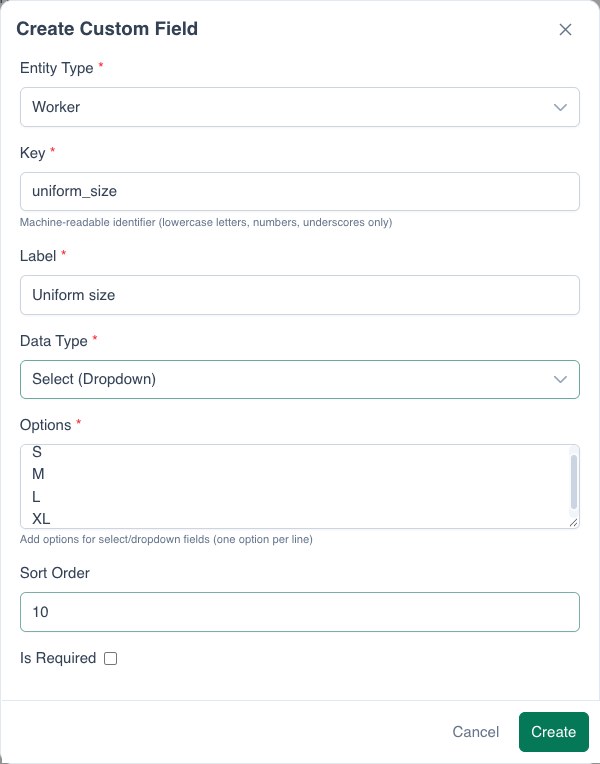
New fields start active. Make the key and data type deliberate choices: they are not changed by a definition update. You can revise the label, choices, required setting, and order later.
Fill in and verify a worker record
- Open Workers and edit a test worker, or select Add Worker.
- Find Custom Fields, choose a uniform size, and save the worker.
- Reopen that worker and confirm the value is still selected.
- If the field is required, check the form with that answer missing before rolling it out to the team.
A new field does not fill in existing records. Plan who will complete missing answers before making a field required, especially if staff regularly edit older worker records.
Use the same fields in a worker import
Create the definitions first. Then open Workers → Import, choose your CSV, and map its columns to the worker fields. The mapping step includes the site's custom fields by label and can recognize their keys or labels in column headings.
For the example above, a column named uniform_size can contain M or XL. Match Select values to the defined choices. Checkbox values can use true/false, yes/no, or 1/0.
Review the rows before importing and inspect the results afterward. Invalid custom values can fail a row. Imports do not enforce missing required custom fields, and they only set these values for workers being newly added to the site; they are not a way to update the custom fields of existing site workers.
See Import data into RouteIQ for the wider import workflow.
Keep the field useful over time
Edit the definition to improve its label or order. When a field is no longer needed in the worker form, turn off its active setting. Deactivation hides it from that form; it does not erase the values already stored.
If the meaning or data type changes, create a new field with a new key. For example, “Uniform size” and “Uniform sets issued” answer different questions and need different types. Check existing values before removing choices from a Select field.
Troubleshooting
The field does not appear on a worker
Check that the definition belongs to Worker, is active, and was created in the same site. Close and reopen the worker form after saving a new definition.
The field cannot be created
Check the key's format and uniqueness. A Select field needs at least one choice. Confirm that you are using an account that can manage settings.
An import left the value empty
Check the column mapping and row result, then confirm whether the worker was already in the site. A successful import does not mean every optional or required custom field was filled.
A custom field did not change driver eligibility
Custom fields store answers. To match a job to equipment or handling capabilities, configure Options on the job, worker, or vehicle.