
How organizations and sites work
Structure one company or many operating locations without mixing their jobs, people, rules, or customer experience.
The hierarchy
- RouteIQ Dispatch Software accountOne sign-in can hold access to more than one organization or site.
- OrganizationThe company identity and shared contact details.
- SiteAn operating workspace with its own URL and configuration.
- Site dataJobs, customers, workers, routes, zones, pricing, and integrations.
| Level | Use it for | Examples |
|---|---|---|
| Organization | The business that owns one or more operations | Legal or trading name, main contact, website, primary address |
| Site | A location, branch, brand, territory, or business unit that operates independently | Timezone, currency, unit system, site URL, jobs, drivers, service catalog |
Site boundaries are deliberate. Opening a different site changes the current workspace, so its customers, workers, jobs, routes, settings, and connected services do not become mixed with the site you just left.
1. Set the organization identity
Open Settings → Organizations & Sites. The organization cards hold the company name, description, email, phone, website, and primary address. Organization administrators can edit these details and manage the sites below them.
Creating a new organization also creates its first site. The two begin with the same name, but they serve different purposes and can be edited independently afterward.
2. Give each site its operating defaults
A site controls how day-to-day work is displayed and managed:
- Name and subdomain identify the workspace and its URL.
- Timezone, locale, date format, and time format control how schedules appear.
- Currency and unit system control money and distance throughout pricing, routing, and reports.
- Industry type helps RouteIQ Dispatch Software start with useful service types, workflows, options, and actions.
- Contact details and address describe that operating location.
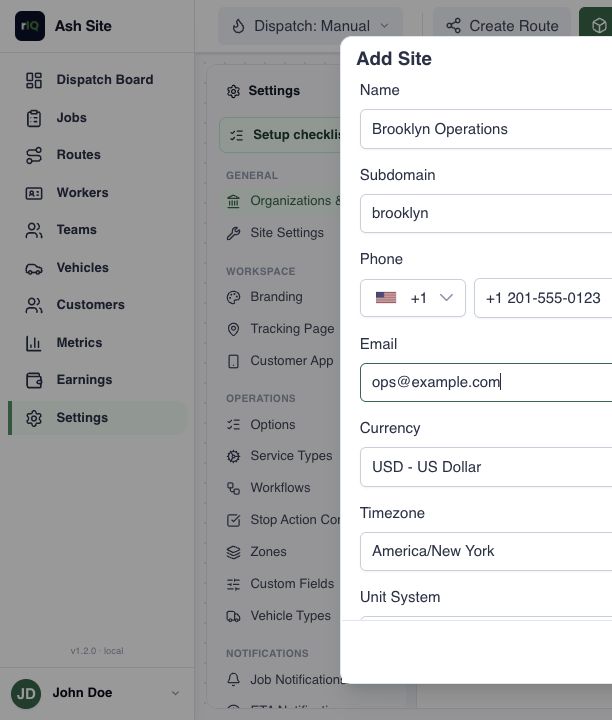
3. Add another site
- Open Settings → Organizations & Sites.
- Select Add site for the organization that should own it.
- Choose a short, recognizable name and a unique lowercase subdomain.
- Confirm currency, timezone, units, locale, and industry before creating live work.
- Save the site, open it, and complete its service types, workflows, zones, pricing, branding, and integrations.
Changing a display preference is easy; changing the meaning of historical schedules, distances, or prices is not. Confirm the site's timezone, currency, and units before importing or dispatching jobs.
4. Switch sites and reuse user accounts
Expand an organization to see its accessible sites, then select Open beside the site you want to use. Opening it switches you to that site's workspace.
A person who already works in another site in the same organization can be added as an existing organization user. Their current sign-in continues to work, but their role and work remain separate in each site.
- Give organization administration only to people who should manage the company and its sites.
- Add dispatchers, drivers, and other workers to the sites where they actually operate.
- Check the site name in the dashboard before creating, importing, or changing live records.
When to use one site or several
Use one site when the same team shares a service catalog, operating rules, timezone, currency, and dispatch queue. Add sites when operations need meaningful separation, for example, different branches, brands, countries, currencies, or independently managed fleets.
Do not create a site for every zone. Zones divide territory inside a site and can route work to the right teams without creating another workspace.
Troubleshooting
A site is missing
Confirm the user's account has an active profile for that site. Access to one site does not automatically grant access to every site in the organization.
Times, distances, or prices look wrong
Open the site settings and verify timezone, unit system, locale, and currency. These values are site-specific.
A subdomain is rejected
Use 2–32 lowercase letters, numbers, or hyphens and choose a value that is not already in use.