
Share and embed the tracking page
Give a customer a branded, live view of one job without requiring them to create an account or sign in.
How the tracking page works
Every job has its own public tracking URL. A customer who opens it can see the current workflow status, route progress, pickup and destination, driver and vehicle information, and the latest available location and ETA. The page updates as RouteIQ Dispatch Software receives changes.
| Experience | Account required? | Best use |
|---|---|---|
| Tracking page | No | A direct, read-only view of one job |
| Customer App | Yes | Requesting jobs and keeping active and past work together |
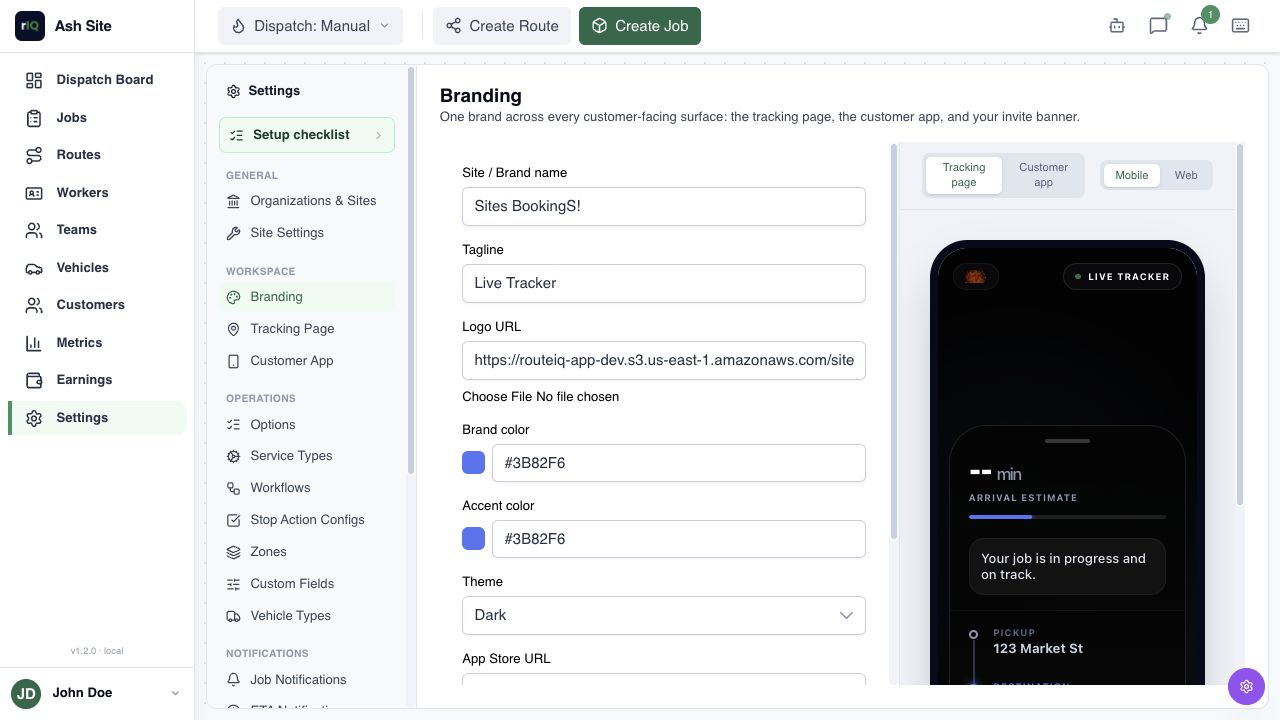
1. Brand the tracker
- Open Settings → Branding.
- Set the site or brand name, tagline, logo, brand color, accent color, and theme.
- Use the Tracking page preview, then switch between mobile and web.
- Add your Customer App’s App Store and Google Play URLs if you want the tracker to show Get the App.
- Select Save.
The tracker chooses the matching store for iOS or Android when possible. Those links should point to the customer app, not the Driver App.
3. Embed the tracker
Use an embed when your website or customer portal should contain the live tracker instead of sending visitors to a separate page.
Generate an embed for a real job
- Open the job and select Embed tracker beside the tracking-link button.
- Copy the generated iframe and place it in the page that customer will open.
- Keep the iframe’s geolocation permission and responsive width unless your site requires a different layout.
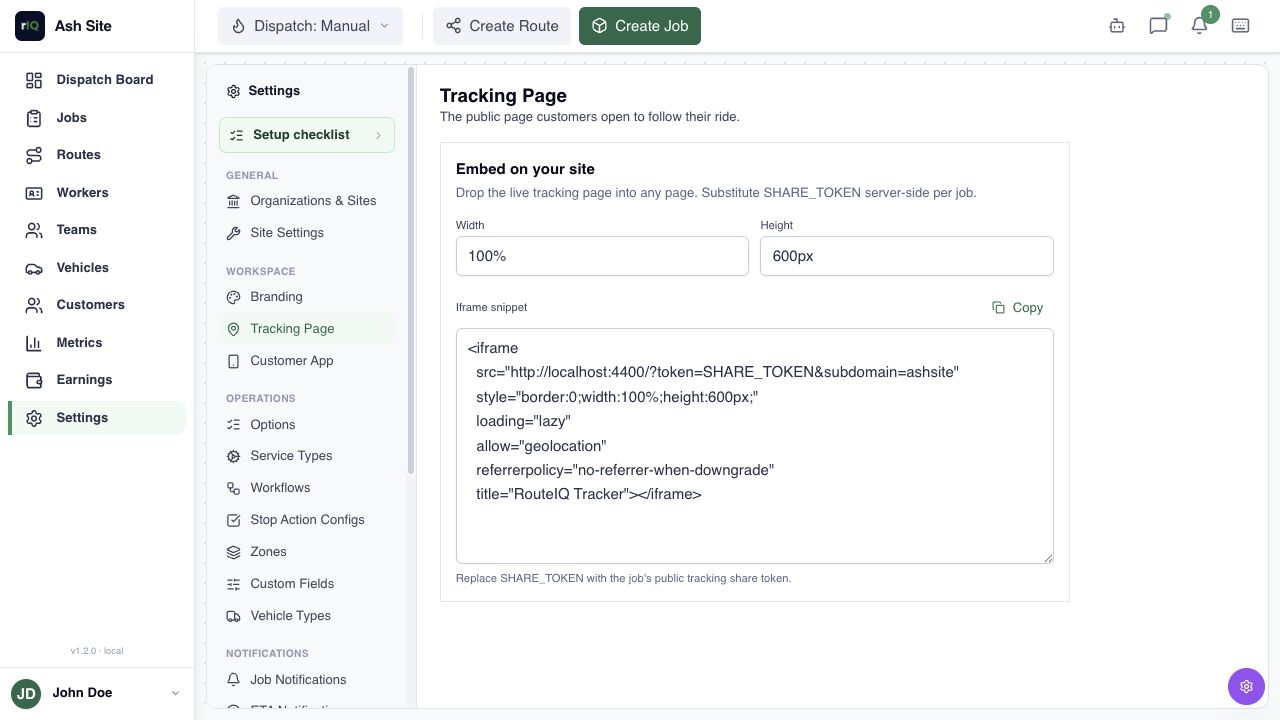
Prepare a reusable template
- Open Settings → Tracking Page.
- Choose the iframe width and height.
- Copy the snippet and replace
SHARE_TOKENon your server for each job.
Never place one customer’s live token in a reusable page template or client-side source intended for other customers.
4. Keep tracking live
The page can only display information RouteIQ Dispatch Software currently has. For the best experience:
- Dispatch the job or its route to the correct driver.
- Ask the driver to use the Driver App and go On Duty.
- Allow precise and background location on the driver’s phone.
- Keep stops, addresses, time windows, and workflow states current.
- Use a configured mapping provider for route and ETA calculations.
Location collection stops when the driver goes Off Duty. A tracker can still show job details and status, but its live position and ETA may no longer advance.
5. Verify the customer experience
- Create a non-production job with valid stops and dispatch it to a test driver.
- Copy its tracking link and open it in a private browser window.
- Confirm the brand, job status, stops, driver, and vehicle are correct.
- Move the test job through its workflow and confirm the page updates.
- If using live location, move the test device and check that the map and ETA refresh.
- If embedding, test the iframe at desktop and mobile widths.
Troubleshooting
The page cannot find the job
Copy a fresh link from the job and use it unchanged. Do not use the internal job ID in place of the public share token.
The map is static or the driver is missing
Confirm the job is dispatched, the correct driver is On Duty, and precise background location is enabled in the Driver App.
The ETA is missing
Check that the remaining stops have valid coordinates and that an active mapping provider is assigned to the required route or matrix operation.
The iframe does not load
Confirm the token was substituted server-side, the full tracker URL uses HTTPS in production, and your site’s content-security policy permits the RouteIQ Dispatch Software tracker host.
Connect tracking to dispatch and delivery
Tracking starts with an assigned job and continues as the driver updates the work. See the complete flow in courier dispatch software, or review delivery management software for planned delivery routes.