
Courier bookings and dispatch
Customers request pickups online. Your team assigns couriers, sends delivery updates, and collects proof of delivery.
Online pickup requests
Customers sign in through your booking link to request a pickup and delivery. Your office can also enter the job, including times, instructions, and service options such as same-day or rush.
Courier assignment
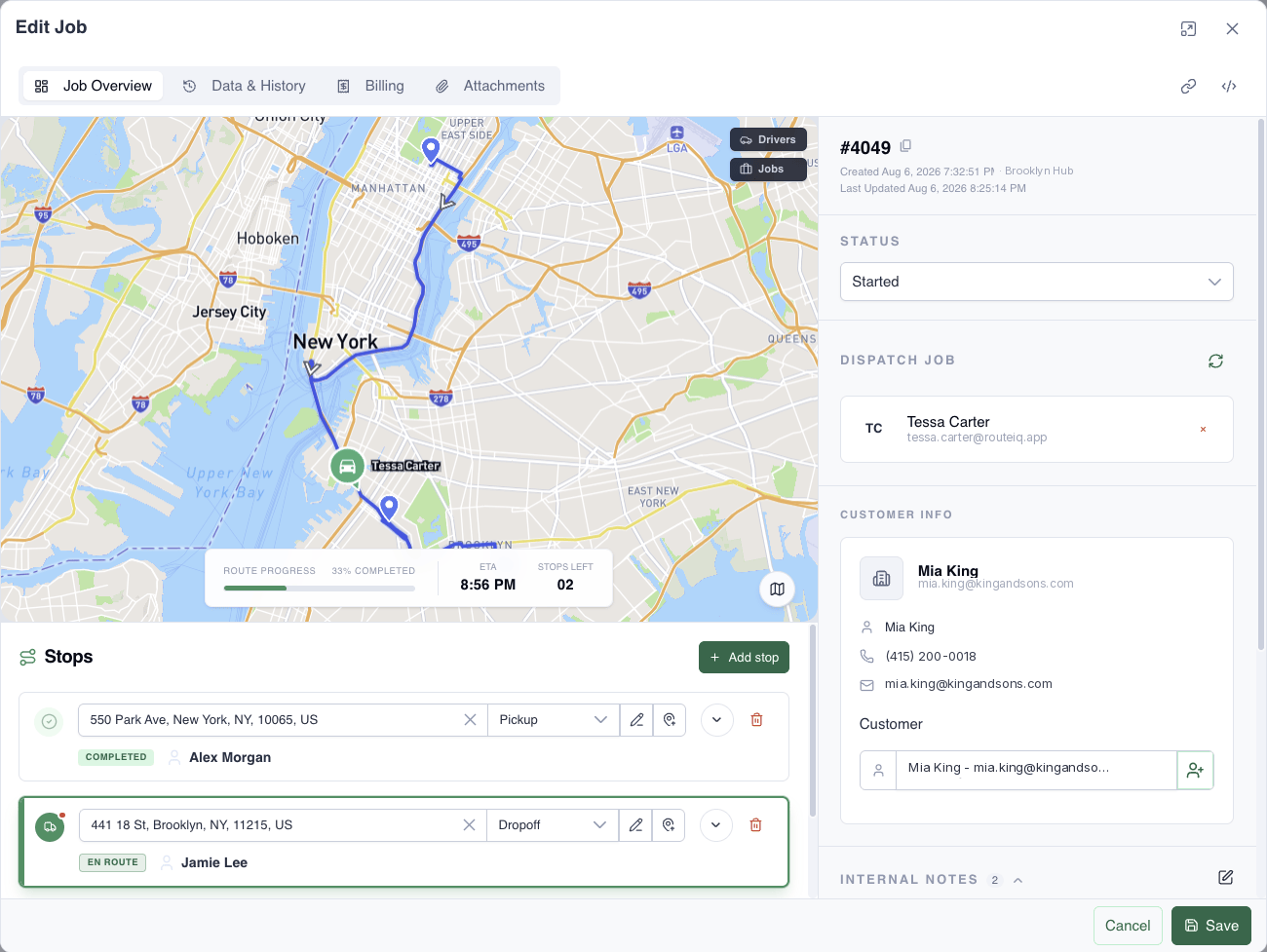
Assign a job directly or group deliveries into a route. Match the courier and vehicle to the job’s requirements. Pickup instructions appear in the Driver App, along with any required scans, photos, or forms.
Delivery tracking
Customers open a tracking link to check delivery status and the latest ETA. No app or sign-in is needed. Set up notifications for the updates you want to send.
Proof of delivery
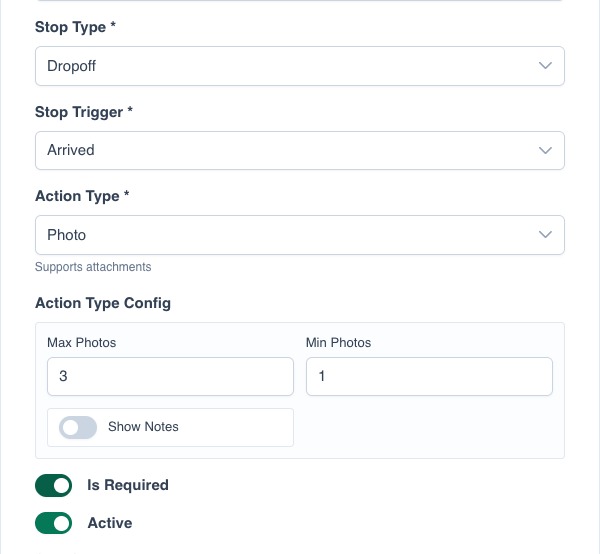
Require a photo, signature, scan, or form before the courier completes the stop. Customers can sign in to view the completed delivery and its proof.
Loading the delivery…
The video could not play here. Open the delivery video
View example settings
Questions
Do customers need an app?
No. Booking and tracking work in a browser. Customers sign in to request deliveries or view completed job records; tracking needs no sign-in.
Can I change the required delivery proof?
Yes. Choose the actions for pickup or drop-off. Changes apply to new stops; existing stops keep their original requirements.