
Help customers book again with your QR code
Give customers a direct way back to your business from a counter, a vehicle, or a social post. Create a branded booking kit, then check the customer journey before sharing it.
Choose where customers will see it
Use a Booking kit when someone is likely to need your service again but may not remember a website address. For example, a courier can leave a counter card at a partner shop so staff can request the next collection.
| Format | Useful placement | Size |
|---|---|---|
| Counter card | Reception desk, shop counter, or table display | 100 × 150 mm |
| Window sticker | Vehicle window, storefront, or office door | 100 × 100 mm; printed on one side |
| Poster | Reception area or noticeboard | A4, 210 × 297 mm |
| Social graphic | Social post or message to customers | 1800 × 1800 px |
For a digital post, include the booking link in the post text too. Someone viewing the graphic on their phone should not need another device to scan it.
Check the destination and branding
Sign in to the correct site with access to Branding. Have the business name, logo, and colors saved under Settings → Branding → Brand appearance. The kit uses those saved details.
Open the site's Customer App and decide who should be able to book. A public QR code does not override your customer signup policy. An invitation-only operation needs to explain how a new customer gets access.
The kit's destination comes from the current site's booking link. Choose the correct site before making materials for a branch or brand.
Create the booking kit
- Open Settings → Branding and choose the Booking kit tab.
- Under 1. Choose a format, select the placement you need.
- Under 2. Make it yours, enter a short headline. For a courier counter card, try “Need another delivery?”
- Add a Supporting message, such as “Arrange a pickup and delivery directly with our team.” The Rides, Deliveries, and Pickups suggestions can provide a starting point.
- Choose Include my logo if a saved logo is available. Use Edit brand appearance if the business name, logo, or colors need changing.
- Review the Live preview. Keep the headline and message easy to read at the intended display size.
- Check the address under Every QR opens this booking link and open it to confirm the destination.
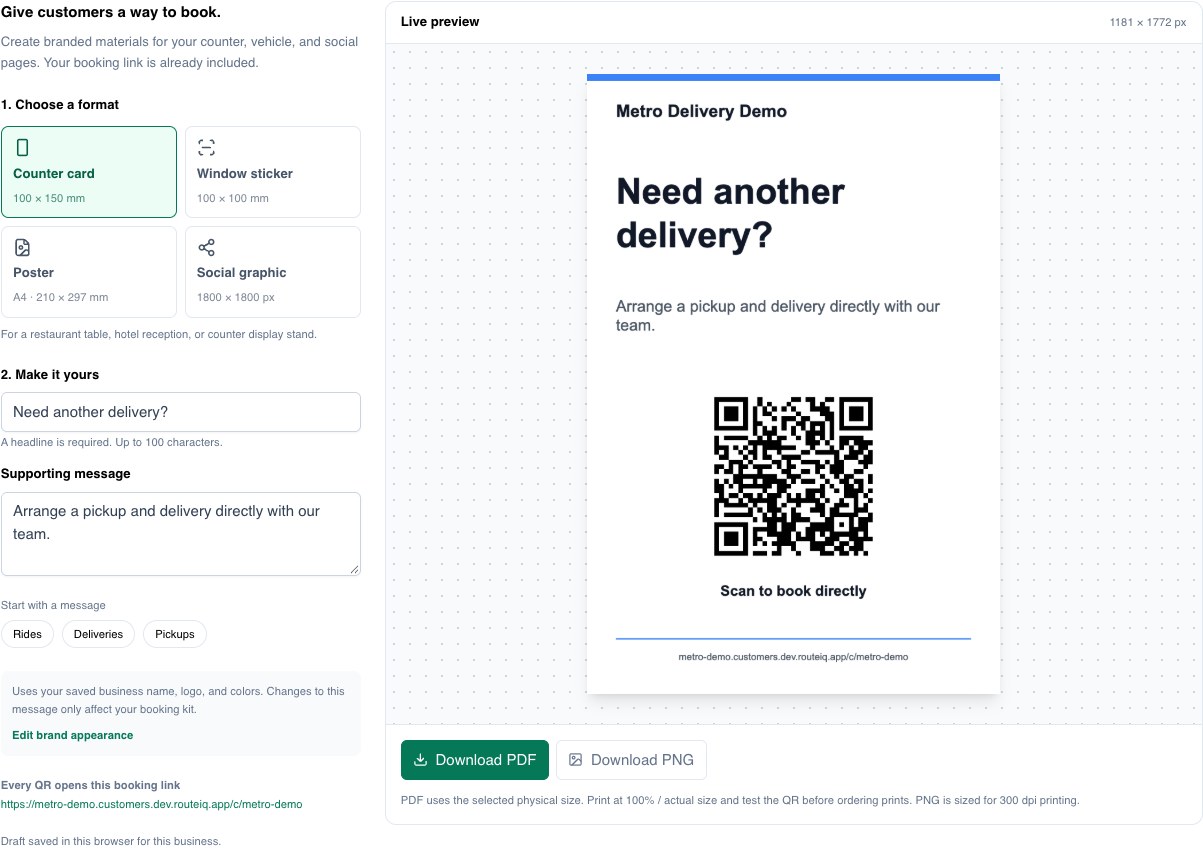
Editing its headline or supporting message does not change your saved brand appearance. The draft is stored only in this browser for this business; it is not a shared design saved for every team member.
Download and scan-test
- Select Download PDF for a file with the selected physical size, or Download PNG for an image. The print formats are rendered at 300 dpi.
- Open the downloaded file and check the name, text, logo, and full QR code. Leave the clear area around the code intact.
- For printed material, print one sample at 100% / actual size. Scan that sample from the distance and lighting customers will use.
- Confirm the link opens the right company's Customer App. Check the sign-in or signup path with a test customer and walk through a booking.
- Only distribute the finished materials once that journey works. Recheck exported files after changing the site address or branding.
Share the downloaded artwork with colleagues or your print supplier. Browser drafts do not move automatically to another device, and an old exported file does not update when your branding changes.
Troubleshooting
The kit is not available
The site needs a subdomain for its booking link. Check the selected site and its site setup. If branding could not load, select Try again.
Downloads are disabled
Enter a headline, wait for the preview to finish, and resolve any preview error. Keep the headline within 100 characters and the supporting message within 180 characters.
The logo prevents the preview or download
Upload the logo again in Branding or clear Include my logo, then retry. Check the exported result before using it.
The QR opens the right site but the customer cannot join
Check the site's customer signup policy and the customer's account. The kit shares an entry point; it does not grant account access.
The preview looks good but the print is hard to scan
Test the actual downloaded file at the selected physical size. Avoid cropping, stretching, glare, or placing the code where customers cannot approach it.