
Define services customers can choose with confidence
Turn the work you offer into clear choices, with consistent names and realistic time allowed at each stop.
Create a choice only when the work is meaningfully different
A parcel team might offer Standard delivery and Room-of-choice delivery. The second service includes carrying the item to an agreed room, so it needs a clearer description and more time on site.
Use names a customer or dispatcher can understand without knowing your internal codes. Explain what is included and any information staff need to collect. Avoid creating a new service for every small detail when an option can describe that requirement on the job.
| Decision | Setting to use |
|---|---|
| What kind of work is being booked? | Service type name and description |
| What should the customer pay? | Pricing rules |
| What equipment or handling capability is needed? | Options on the job or its service |
| What evidence should the driver collect? | Stop action configurations |
Create a service type
Use an administrator account and select the site that will offer the service.
- Open Settings → Service Types and select Add Service.
- Enter a Name, such as “Standard delivery,” and a required Description, such as “Scheduled parcel delivery to a named recipient.”
- Add an optional Short Code, such as
STD, if you import jobs or connect another system. - Review Capacity, a non-negative whole-number value in the service catalog. It is separate from the seating, cargo capacity, and dimensions recorded on an individual vehicle.
- Set Default Service Time (minutes) if jobs of this type usually need a predictable amount of time at a stop.
- Add Price Details and an Image if they help customers understand the offer. Price Details is descriptive text; it does not configure the price calculation.
- Turn on Active when the service is ready to use, then select Create. New service forms start with Active off.
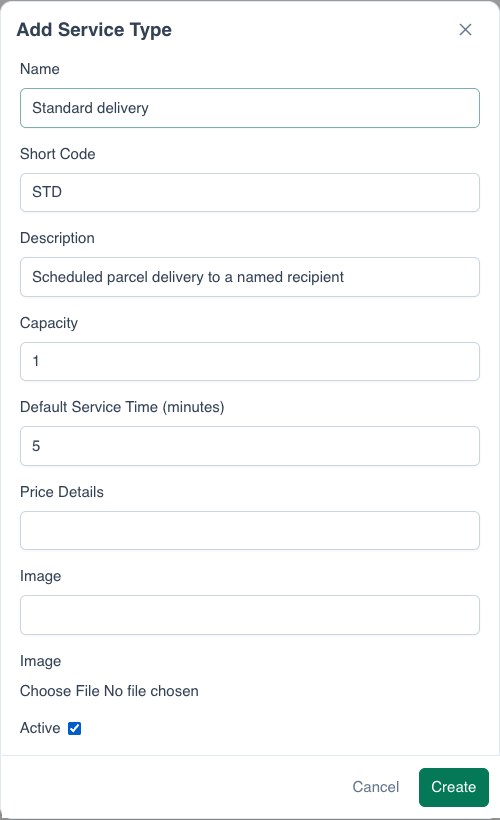
Finish the matching pricing setup before testing a booking. An active service alone is not enough for the create-job screen to save a job: the selected service also needs a price estimate.
Allow time for the work at each stop
Driving is only part of the job. Parking, unloading, finding the recipient, and collecting proof all take time. Default Service Time supplies planned time on site for each new job stop that does not have its own duration.
For example, a five-minute default on a job with a pickup and a dropoff allows five minutes at each stop, not five minutes for the entire job. That planned time feeds ETAs and route planning.
An explicit duration on a stop takes priority, including zero. If a pickup usually takes two minutes and an installation takes thirty, use the appropriate per-stop durations rather than expecting one service default to represent both.
Changing the service's default does not rewrite durations already stored on existing stops. Verify a changed default with a newly created test job.
Keep imports stable when names change
Use a short code when spreadsheets or external systems need a dependable way to identify the service. The code can contain up to 32 letters, numbers, hyphens, or underscores. Codes are unique within the site and stored uppercase.
A job import can identify an active service by its short code or name, without a case-sensitive match. A code such as STD can stay the same when “Standard delivery” becomes “Scheduled delivery,” so the source spreadsheet does not need to follow every display-name change.
Keep codes distinct from other service names to avoid ambiguity. If you change or clear a code, update the systems and import templates that use it. See Import data into RouteIQ.
Verify the service in a new job
- Reopen the service and check its saved description, short code, service time, and active status.
- Start a test job with valid pickup and dropoff addresses. Select the service and confirm that its price estimate loads.
- Review the name and description from the customer's point of view. If you use customer booking, check that selection there as well.
- Save the controlled test job and inspect its stop durations. Confirm that the default was used only where a stop did not supply its own value.
- If you import jobs, try a small test file using the short code before changing a production import template.
Follow your site's normal test-dispatch precautions: automatic dispatch may begin when a job is saved.
Troubleshooting
The service is missing or cannot be saved on a job
Confirm that it belongs to the current site and is active. Complete the job's addresses and check that a price estimate is available for the selected service. A service name selected in the form does not by itself confirm a successful quote.
Changing Price Details did not change the quote
That field explains the offer. Edit the relevant pricing rule to change the calculated amount.
The default time did not appear on a stop
Check whether the stop already had a duration or was created before the default changed. Explicit stop values take priority.
A short code is rejected or an import cannot find it
Check the code's format and uniqueness, the current site, and the service's active status. Update the import mapping if it still refers to an old name or code.