
Create a job ready for dispatch
Give the driver enough information to do the work without calling the office for missing details. Start with the places to visit, then add the customer, service, timing, and instructions.
Before you begin
Use this flow for a request received by phone, email, or your own staff. If you have a list of jobs, importing a CSV may be quicker. Customers can also request work through your Customer App.
Have the addresses, contact details, and any promised arrival or completion windows ready. Confirm you are in the correct site. Your administrator should already have configured the services and requirements your operation uses.
The pickup needs collection instructions. The dropoff needs a recipient and handoff instructions. A five-minute visit at each address is different from five minutes of driving between them.
Watch one job move through the whole workflow
This 3:29 demonstration connects job creation with dispatch, driver acceptance, customer tracking, and proof of delivery. It uses fictional sample data and on-screen explanations, with no narration.
The recording shows the earlier Create Job layout. The steps and screenshots below show the current workspace. Use the video to see how the same job moves between your team, the driver, and the customer.
Read the visual summary
- 0:00–0:51 — Prepare the team. Sign in to the Dashboard, add a driver and vehicle, then sign in to the Driver App and go on duty.
- 0:51–1:21 — Create the request. Select or add the customer, resolve the pickup and dropoff addresses, choose a service, review the quote, and create the job.
- 1:21–1:49 — Assign and accept. Choose the driver and vehicle, request driver confirmation, dispatch the job, and accept the offer in the Driver App.
- 1:49–2:45 — Do the work. Start the route and pickup, watch the job and customer tracking update, confirm arrival, complete the pickup, and begin the dropoff.
- 2:45–3:11 — Record the handoff. Attach a photo, add a delivery note, save the proof, and complete the final stop. Tracking shows the completed delivery.
- 3:11–3:29 — Close the job. The demonstration records a cash payment and closes the route. The Dashboard, driver, and customer views show the final outcome.
Find your way around the workspace
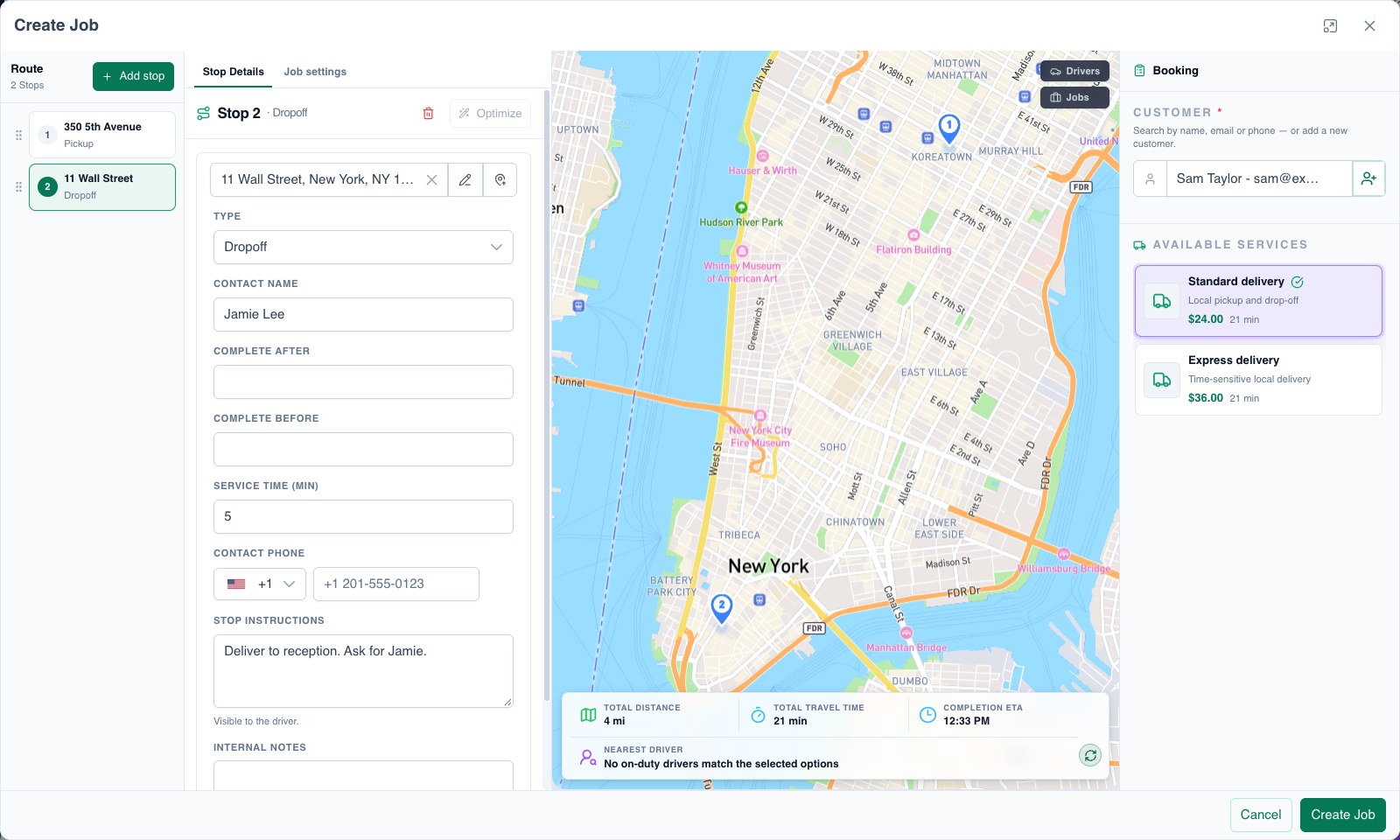
Open Jobs → Create Job. On a wide screen, the workspace keeps four areas together:
| Area | Use it to |
|---|---|
| Route, on the left | Select a stop, add another, or change their order. |
| Stop Details | Edit the selected stop's address, contact, time window, duration, and instructions. |
| Map | Check that the locations make sense and review the available estimates. |
| Booking, on the right | Choose the customer and an available service. |
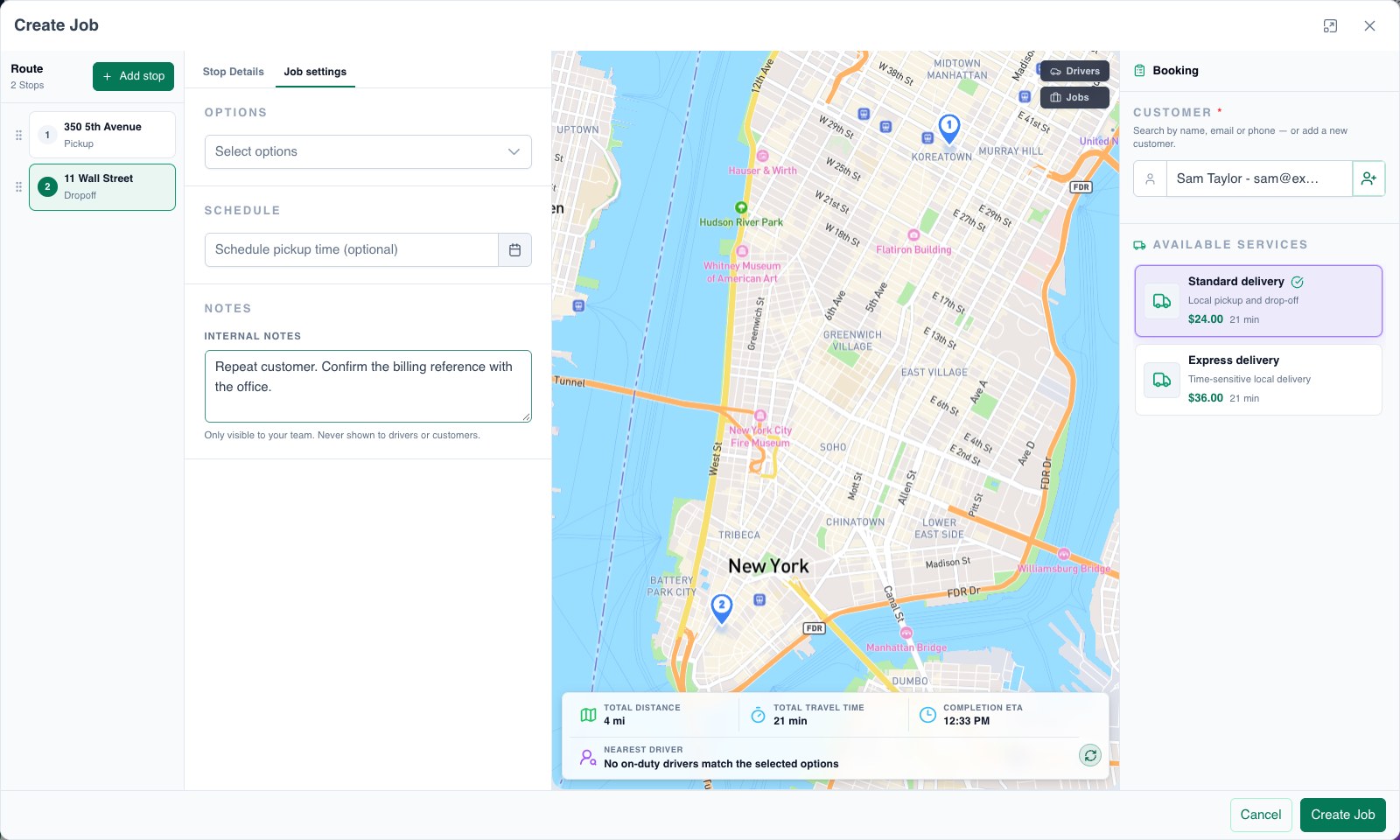
The Job settings tab beside Stop Details holds options, the job schedule, and internal notes. On smaller screens the same controls adapt to the available space.
1. Describe the work at each stop
- Select a stop in the Route list. Search for its address and choose a matching result, or use Pick on map. Check the resolved address and map position.
- Choose Pickup, Dropoff, or Waypoint to describe what happens there.
- Enter the contact who can help at that location. This may be different from the customer who booked the job.
- Add Complete After and Complete Before when the stop has a real time constraint. See driver timing rules for how these windows affect completion.
- Set Service Time (min) for the expected time on site, such as loading, paperwork, or a handoff.
- Put access and handoff directions in Stop instructions. These are visible to the driver. Keep staff-only information in Internal notes.
- Repeat for the other stops. Use Add stop when the request includes another visit, and check the order.
A pickup and dropoff are useful for a delivery. A visit at one location may need only one stop. Remove an unused stop rather than leaving its address blank.
2. Choose the customer and service
In Booking, search for the customer by name, email, or phone. Select the existing record when it is the same person; use the add-customer control when a new record is needed.
Resolve the address on every stop before choosing a service under Available Services. Select the offering that matches the request. The service can supply defaults such as time on site; pricing rules determine the quote.
A valid price estimate for the selected service is required to create the job. If that estimate fails, resolve the error before continuing. The map route and nearest-driver previews are separate from this price requirement.
Review the displayed estimate with the customer when relevant. A price or travel-time estimate does not by itself confirm that a driver is available or that a promised time can be met.
3. Set requirements and timing for the whole job
Open Job settings:
- Options: select real handling or capability requirements. They can affect who is eligible and how the work is priced.
- Schedule: set the requested job time when it is for later. Use the individual stop windows for location-specific constraints.
- Notes → Internal notes: keep job-wide context for your team. Put directions the driver needs in the relevant stop's instructions.
If drivers must collect a photo, signature, scan, or form, configure proof of work before creating the job. Matching active stop-action templates are applied when new stops are created; their absence from the Create Job screen does not mean no proof will be required.
4. Check and create the job
- Confirm the customer, selected service, stop order, addresses, and contact details.
- Check time windows and on-site duration against the actual promise you made.
- Review the map and available estimates. Investigate unexpected locations or an unavailable driver estimate.
- Select Create Job, then open the saved job and confirm its stops and requirements.
You do not need to build a route manually before creating a job. Your next step is to assign the work or plan a route. If automatic dispatch is enabled, the saved job may be picked up according to your site's dispatch rules.
If something is missing
I cannot choose a service
Check every stop, including any you added accidentally. Each needs a resolved address. If the list itself is empty, ask an administrator to check the site's active service types.
The driver cannot see my instructions
Check where you entered them. Internal notes are for your team. Driver directions belong in the stop's Stop instructions.
The route estimate or nearest driver is unavailable
Confirm the addresses and mapping configuration. Driver availability also depends on duty status, location, and requirements. Missing driver availability is different from a missing route estimate.
A service is selected but I still cannot create the job
Check that it has a valid price estimate. Resolve pricing errors and recalculate before trying again; selecting the service alone is not enough.
Create Job asks me to complete more information
Read the fields listed beside the action. Recheck the customer, service selection, stop addresses, and time-window order before trying again.