
Know which truck took each load—and where it went.
Move excavated soil out and bring fill in with a job for each load. Give dispatch a clear origin and destination, give the driver site instructions, and record what happened at both ends.
Set up the load before the truck arrives.
Create a job from the excavation or supply site to the destination your team has confirmed. Add the material description, load reference, site contact, gate, hours, and loading instructions. Assign a driver and truck so the same brief reaches the Driver App.
Excavation site → receiving site
- Load
- Project and load reference, material description
- Pickup
- Site entrance, loading contact, pickup window
- Destination
- Receiving location and instructions confirmed by your team
- Assignment
- Truck, driver, and required stop checks
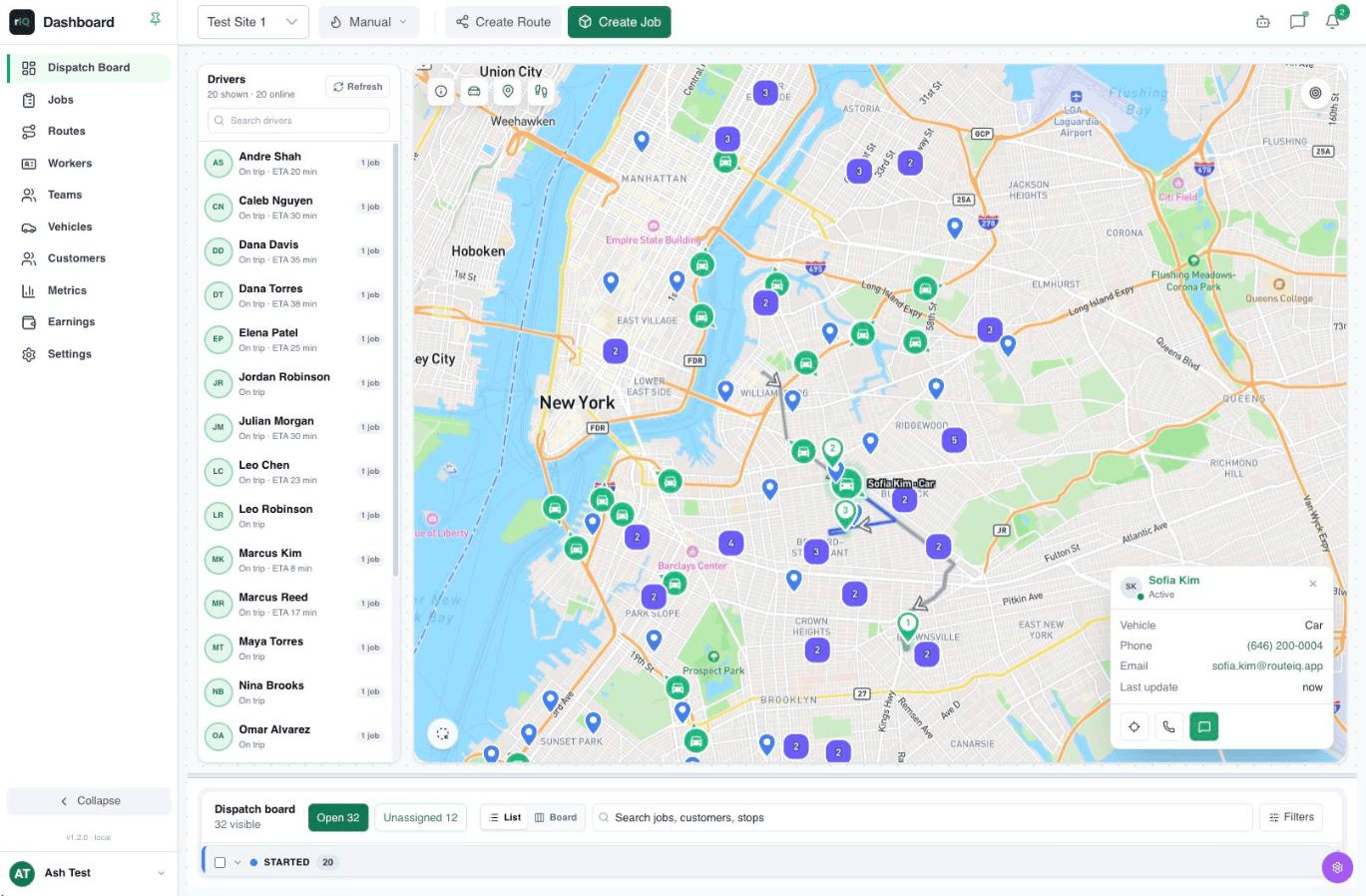
See the fleet. Send the next load.
Dispatch can see on-duty driver locations, current jobs, assigned vehicles, and ETAs. Send a truck to the next pickup, or group planned loads into a route and review the stop order before assigning it.
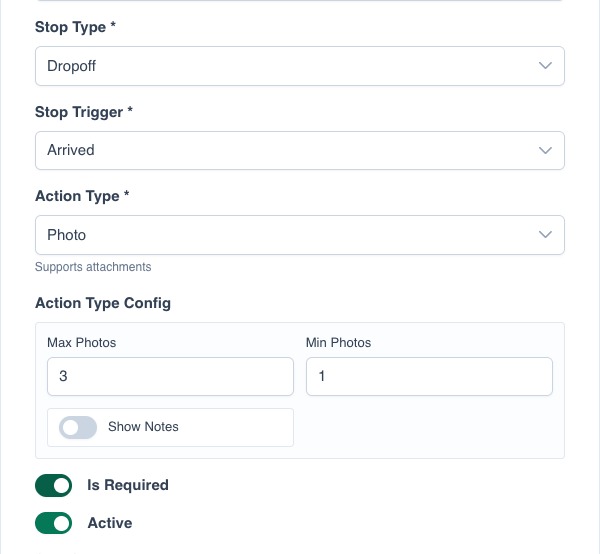
Check the load at both ends.
Configure required pickup and drop-off actions before creating the jobs. Drivers can photograph a load or paper scale ticket, complete a form with a load number or quantity, and collect a signature at the receiving site. Each stop keeps its own completed actions.
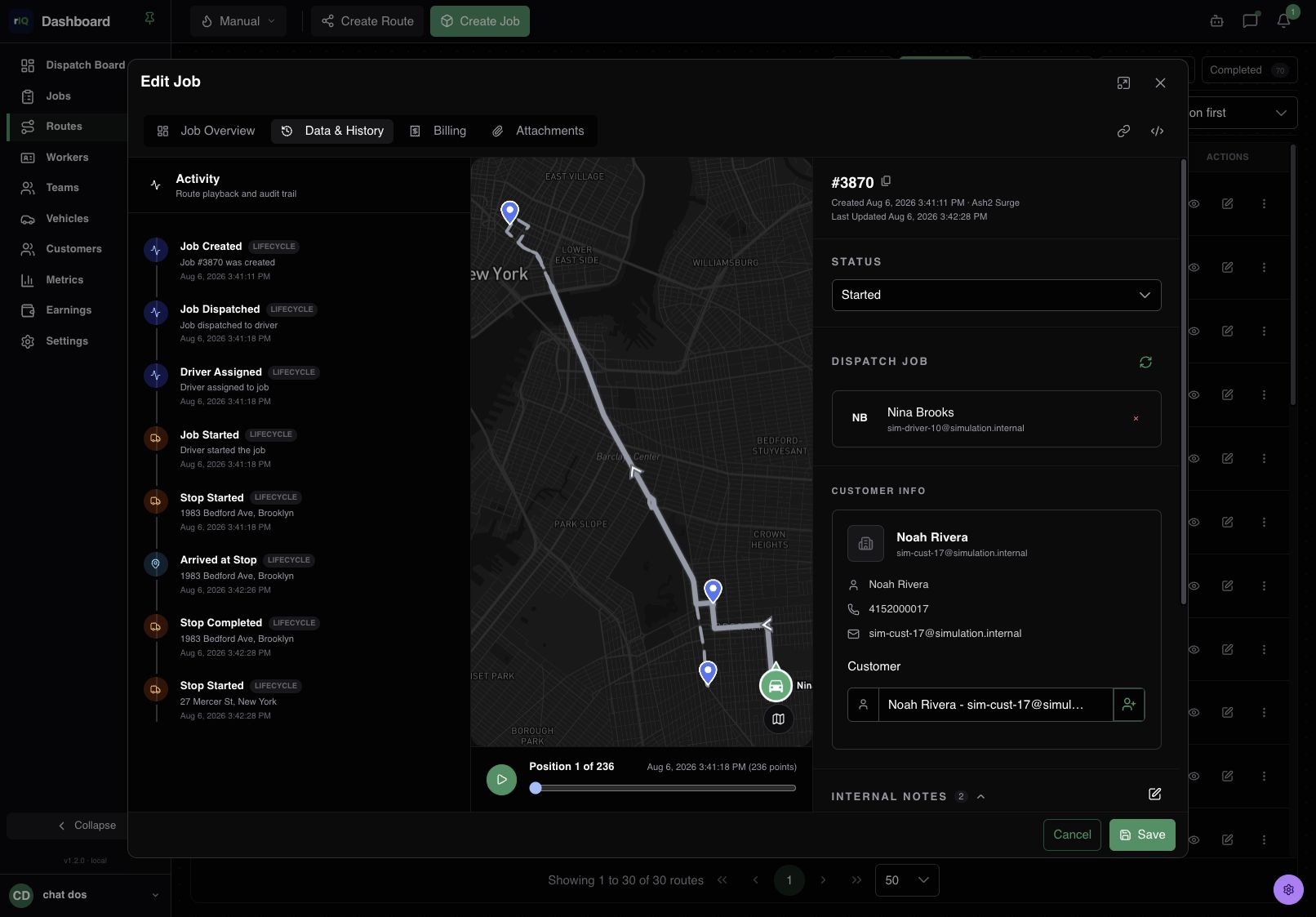
Pull up the trip when someone asks.
Review job activity, saved stop proof, audited changes, and available location playback together. The record helps a dispatcher answer which driver handled a load and when the pickup and handoff were recorded.
Questions before the first load
Can we use this for repeated dump-truck trips?
Yes, as a separate job for each load. Dispatch can assign the next job or plan several jobs into a route. The platform does not automatically create round trips or reconcile load totals.
Does arrival at a geofence count as site check-in?
No. A geofence can alert your team when a tracked driver enters, exits, or dwells in an area. The driver or receiving contact must still complete the configured stop checks.
Does RouteIQ Dispatch Software generate scale tickets or regulatory manifests?
No. You can capture a ticket photo and form values with the job, but native scale integration, certified e-ticketing, and official waste tracking or hazardous-waste manifest submission are separate processes.
What about contaminated soil?
Use RouteIQ Dispatch Software for dispatch and field records after your qualified team classifies the material and confirms an authorized destination. The platform does not classify soil, approve receiving facilities, issue transporter permits, or replace required documents and reporting.
Will the route account for dump-truck restrictions?
Truck restrictions depend on the active map provider. Mapbox currently uses its standard driving profile for trucks, so check the route, vehicle limits, and any required permits before dispatch. Map provider details